Zebra TC52 settings
The WMS app can be used on any device with a browser, but it’s even easier on a handheld scanner such as a Zebra device. The Zebra TC52 is a commonly used Touch Computer with an integrated scanner. To use the WMS app effectively on this device, several settings need to be checked.
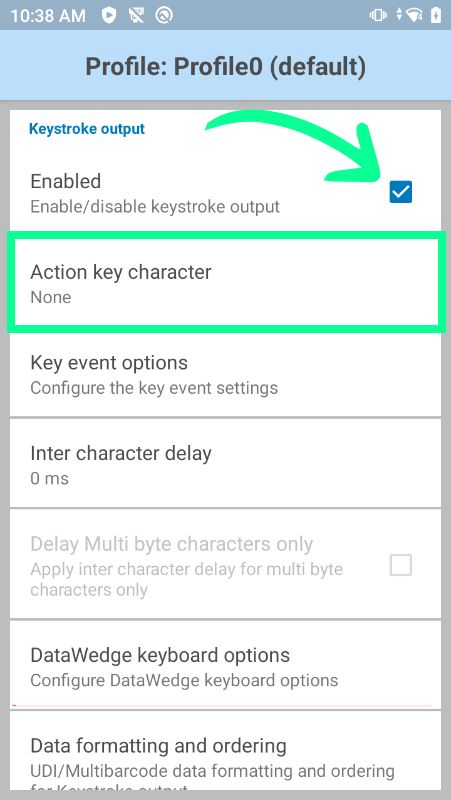
Keystroke Output
This setting ensures that scanned values are sent to the device as keystrokes, emulating a keyboard. Currently, the WMS app only works with keystrokes.
Enable Keystroke Output
- Open the DataWedge app on the device and open the profile (default is Profile0).
- Locate the Keystroke Output section.
- Make sure the Enabled option is checked.
Action Key Character
This option determines how the device handles special characters in barcodes. Set this to None to ensure the correct data is scanned.

Inter Character Delay
If you still experience issues, you can set this setting to 1ms. This adds a very short pause between the emulated keystrokes.
Only Enter After Barcode Data
In the same list, under Basic Data Formatting, ensure that:
- Send Data and Send ENTER Key are enabled
- Send TAB Key and Send as Hex are disabled
More information about the other settings can be found in the Zebra documentation.